
Legacy Console Edition Shaders
ModrinthA minimal and simple shader aiming to replicate the look and feel of the legacy console editions of Minecraft.
0.1 · MC 1.21 · Iris, Optifine
Files
0.1
alphaa0.1
1.21irisoptifine2025-03-30 · 12.5K downloads
Legacy Console Look.zip · 2.2 KB
Files are delivered unmodified from Modrinth's servers and verified against the SHA-512 hash published by the project. The project's license applies to every file; check it before redistributing.
Gallery
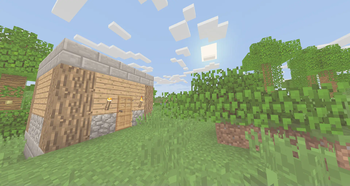
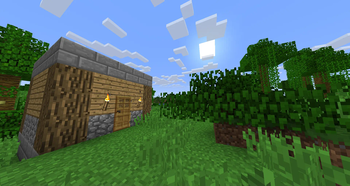
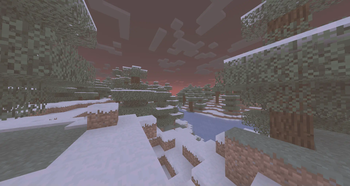
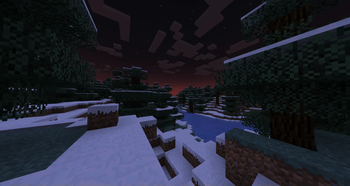
About
What is it?
Simple and performant shader that aims to replicate the look of legacy console editions. This shader is a basic post-processing effect applied to the game without any fancy techniques like shadows, reflections, etc. So it should be able to run on basically every computer (if supported).
There's no tweakable settings for Optifine / Iris in the shader menu, but the values are easy to change and edit it inside of the shader code. In the shader code (final.fsh), there's variables like contrast, gamma, vibrance, and other variables that are tweaked to look like the legacy console editions of the game.
Why would you install this shader?
You would install this shader if you miss the old nostalgic look of Minecraft in the old legacy console editions (Xbox 360, Xbox One, Ps3, Ps4, etc.). This would be if you don't currently have a copy of these old versions of the game, and you miss playing the old game.
If you have played or watched clips and videos of the legacy console editions of Minecraft, you may have noticed the different look of the game. This is because the old legacy console editions had a different approach into how the colors and post-processing was applied, making the game look brigther in some way.
How to install?
When downloaded, cut & paste the shader zip file into a folder "%AppData%" (Depends on the operating software, these instructions go for Windows 10 or Windows 11). When in the file, look for a .minecraft folder. In there, look for a folder labeled "shaderpacks". If not there, create it. Paste the shader file in there and you're are good to go! Make sure you have Iris or Optifine installed and running too.